You can reset a student’s XpressLab login password using the Students tab, located on the Course Dashboard page.
Reset a student’s password by following the steps below:
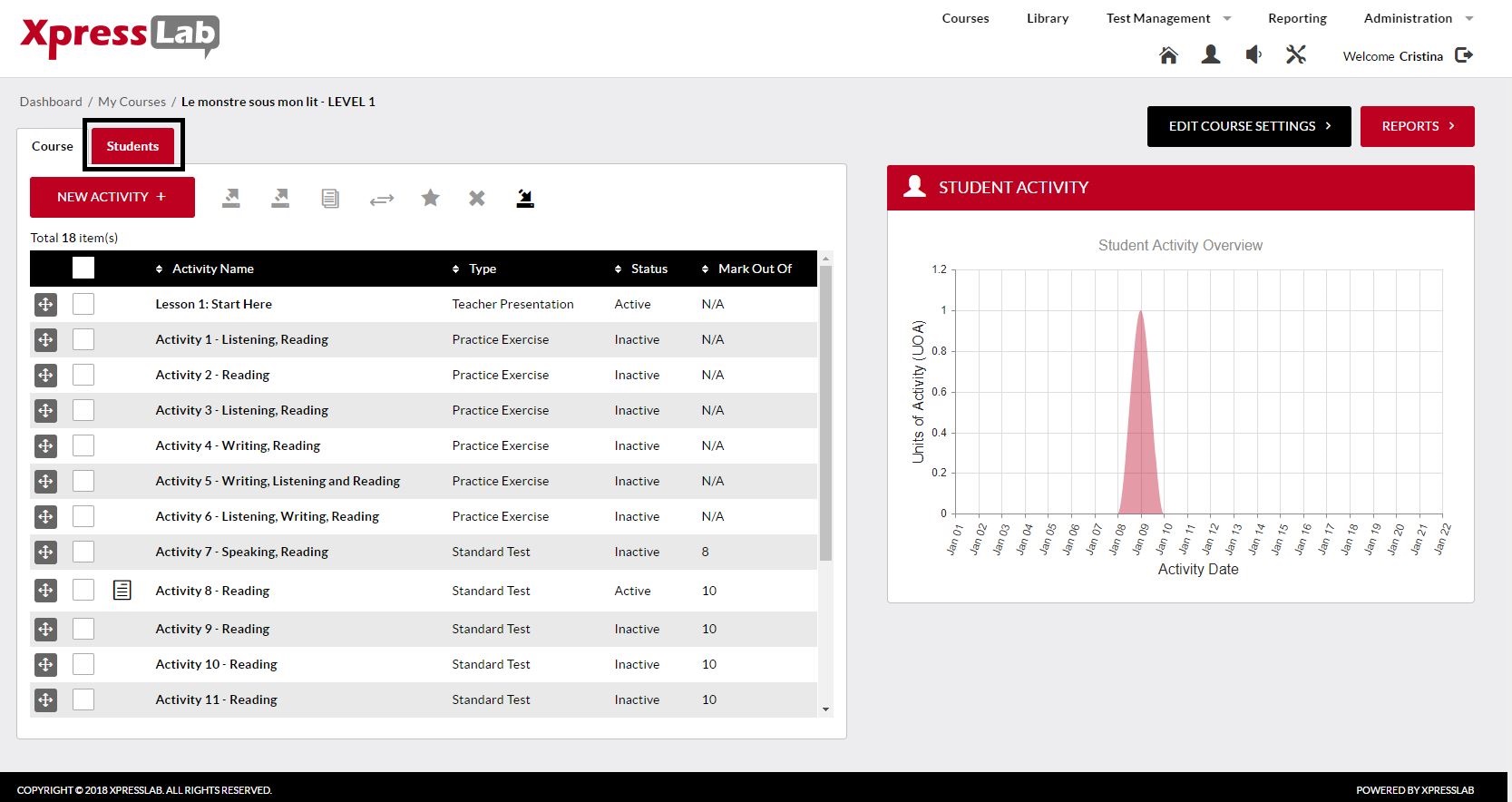
- Click on the Students tab from within the Course Dashboard page.
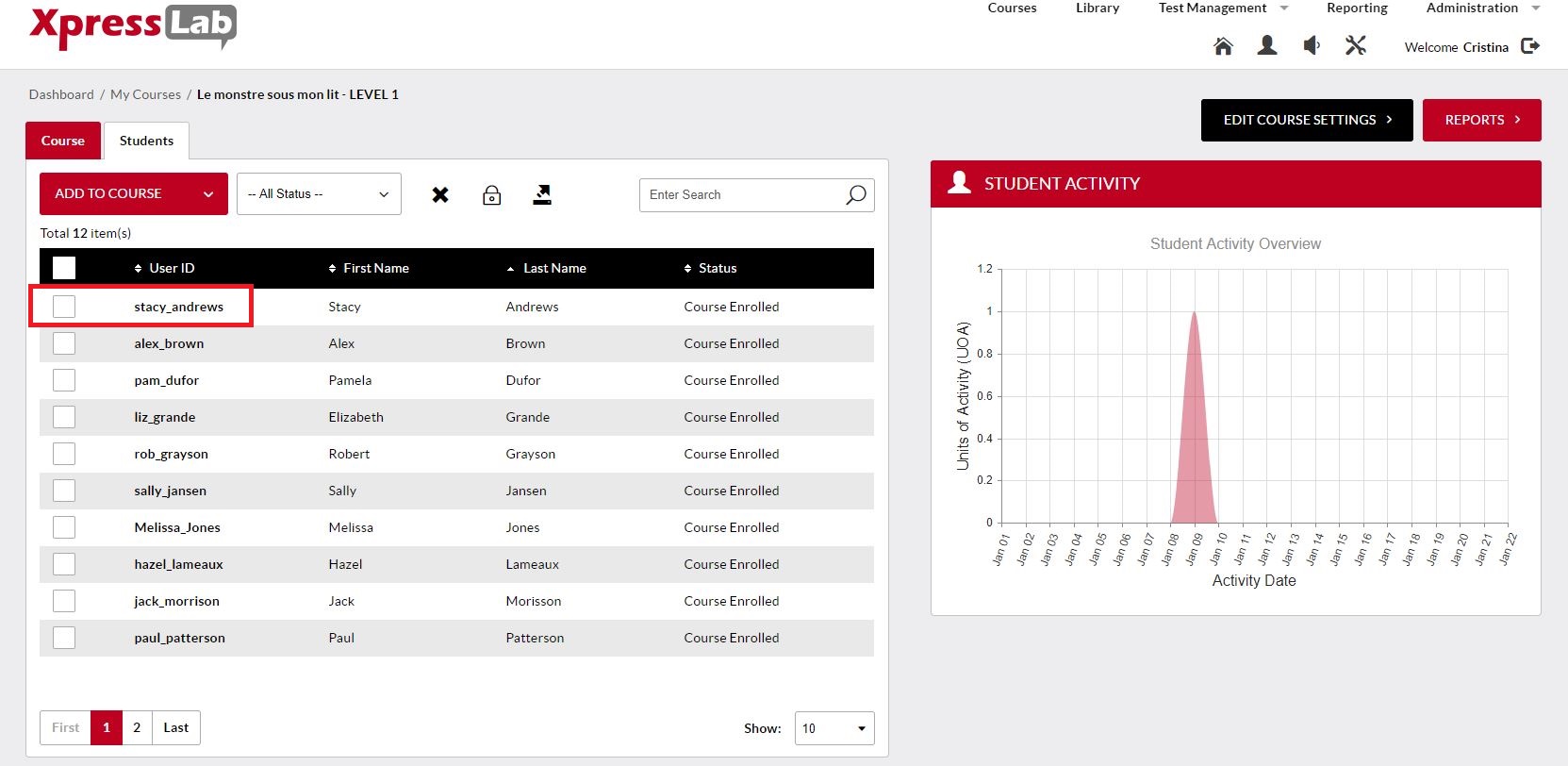
- Locate the student from within the Student List. Then, select the checkbox to the left of the student’s User Id.
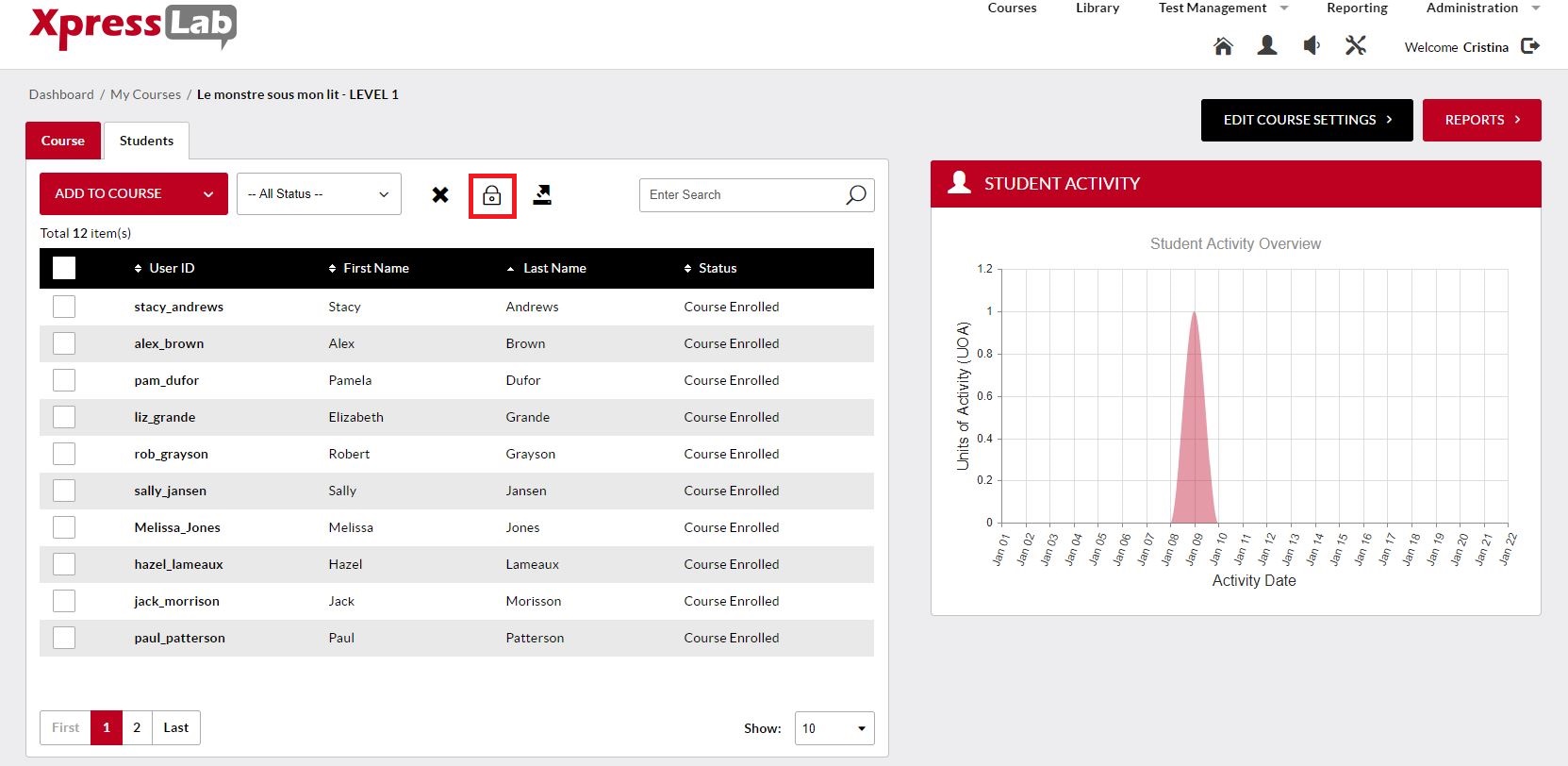
- Click the Reset Password icon, represented by the image of a lock, located in the toolbar at the top of the Students tab.
- Click the OK button from within the Password Reset Confirmation Window.
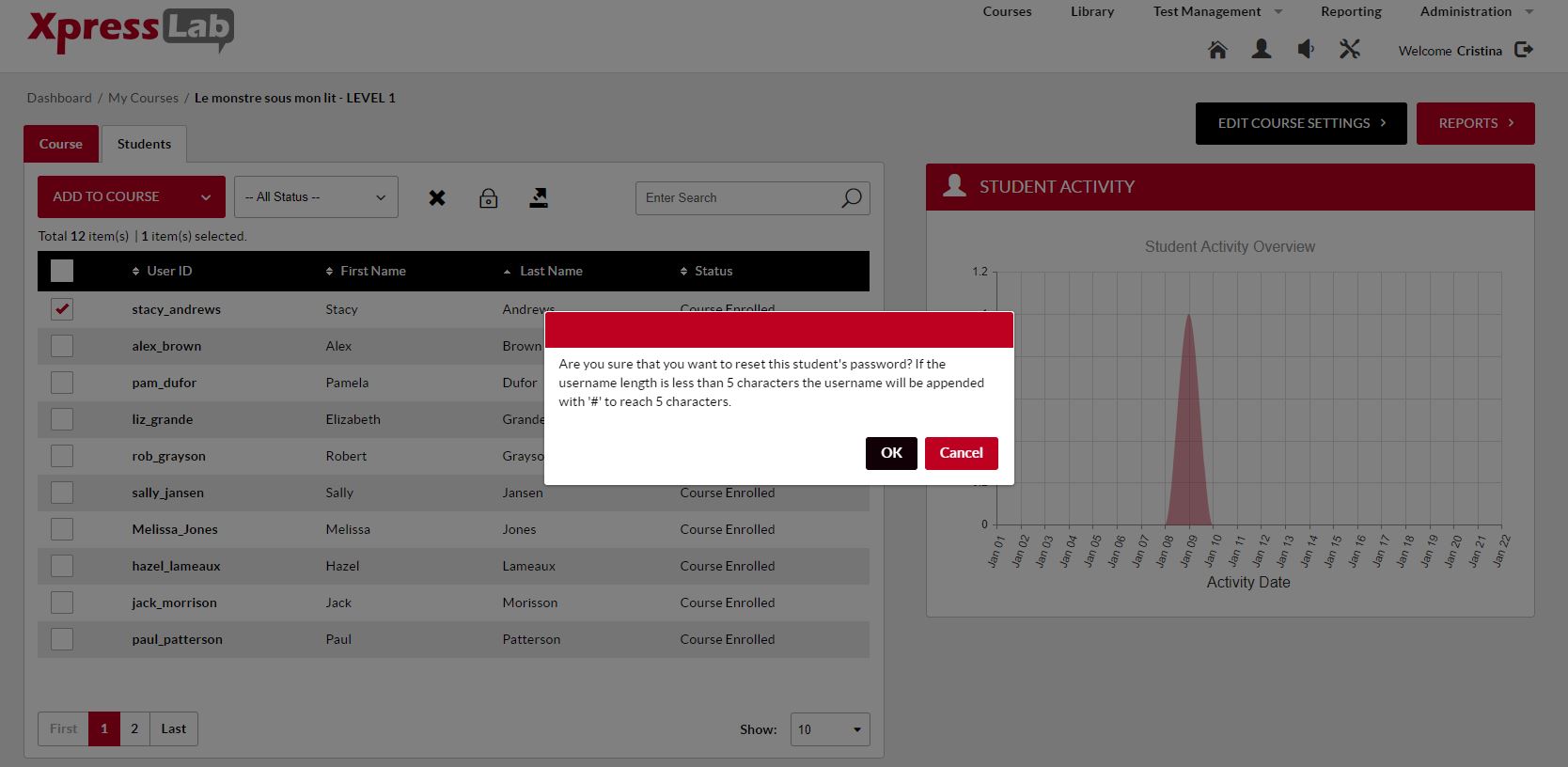
- The student’s new password will be student’s User Id. If the student’s User Id is less than 5 characters long, then the pound symbol (#) will be added to the end of the student’s User Id, until the length of the User Id equals 5 characters.
For more video tutorials, please visit us on YouTube by clicking here.
0 Comments