You can use the Profile Information page to change your XpressLab login password at any time.
- To access the Profile Information page, begin by logging in to your Teacher Account using the XpressLab application login page, found at: app.xpresslab.com/LogOn. If you have forgotten your XpressLab password, please follow the How To Recover Lost Passwords n XpressLab instructional guide.
- Click the Profile icon, located within the main navigation bar in the top right corner of your screen. This will direct you to the Profile Information page.

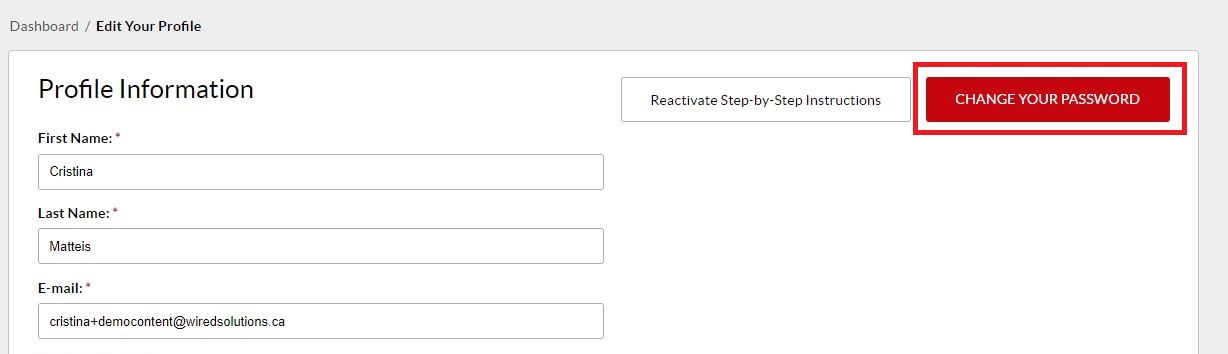
- To change your login password, click the red Change Your Password button, found in the top right section of the Profile Information page.
- Complete the Change Your Password form by entering your old password in the Old Password field, as well as your new password in the New Password field.
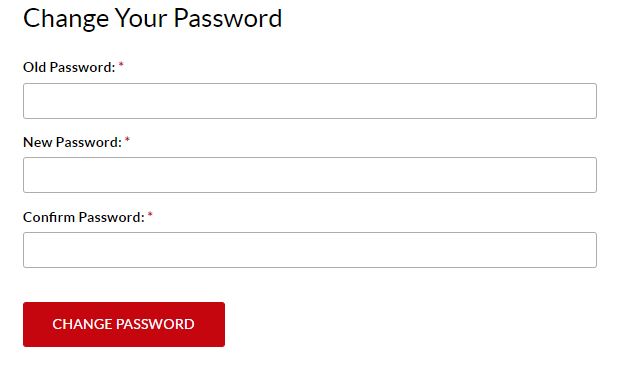
- To confirm your new password, click the red Change Password button at the bottom of the Change Your Password page.
0 Comments